ani-mae-tion stuffs
hi, thought I’d make a little post detailing the whole process of working out how to do animation on desktop. serves as a reminder for myself at a later date, and let’s me post something on here and seem more active (I’m online every day, but just usually quiet in-between projects, oops).
animation is cool and neat, and I already get the gist of how to approach it. cel animation is definitely the ideal in my mind, or at least as close to cel animation as I can get in a digital environment (drawing each frame meticulously by hand). but…. yeah, that shit is tedious as hell. personally, I likely couldn’t do it for anything other than a single scene, probably some sort of horny sex loop. projects that take too long I end up getting bored of, but I’ve recently taken the habit of working on multiple at once, and bouncing between them instead of abandoning them entirely, works nice for me. I can fortunately just use my current art software of choice for this (clip studio paint). it’s a little finicky since it’s definitely not an app that prioritises animation, but yeah, i’ve made it work before.


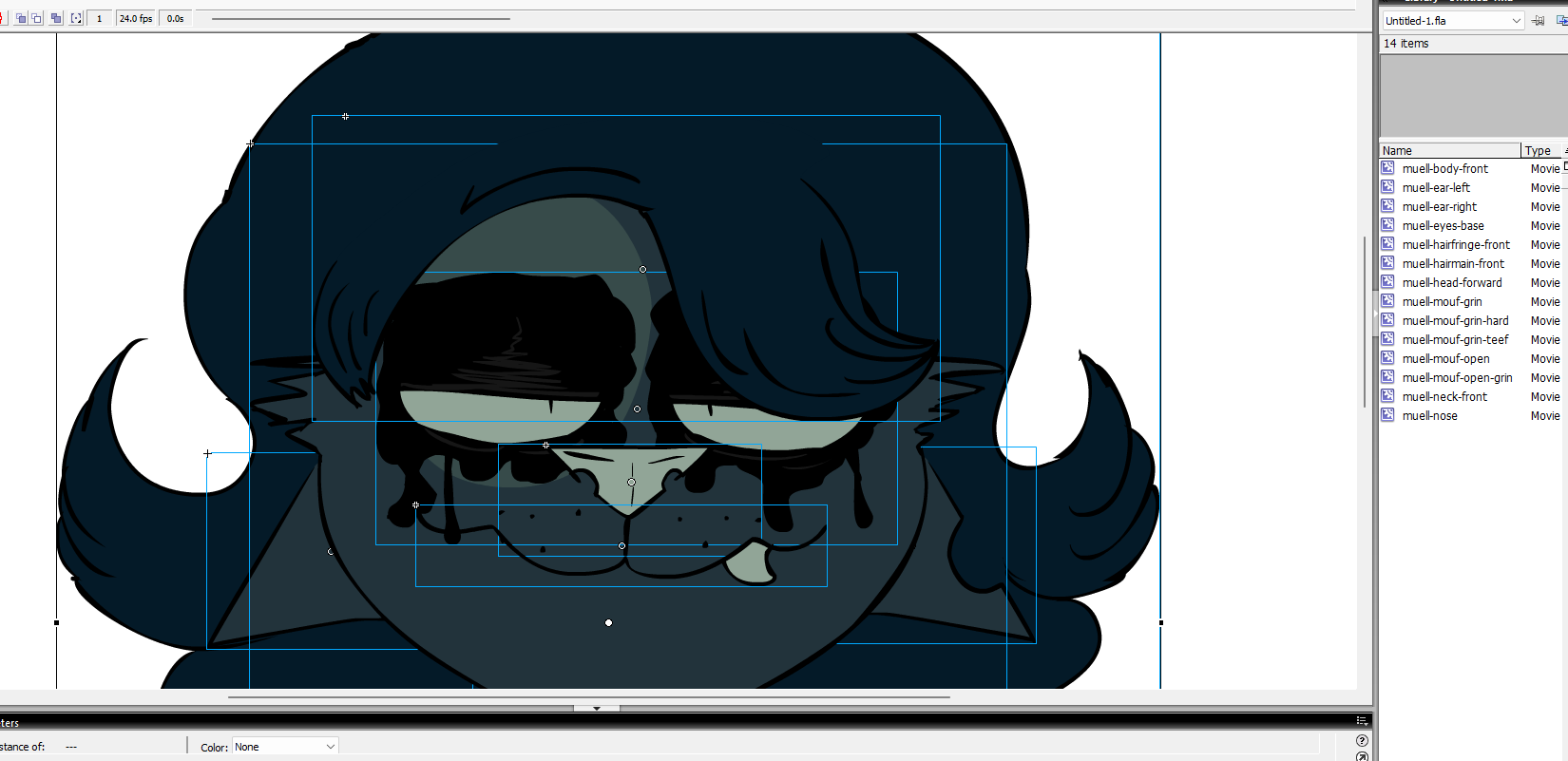
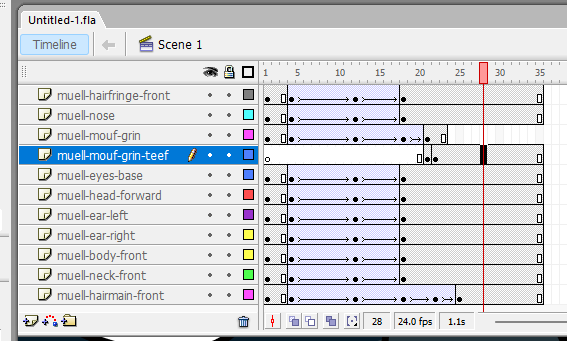
a second preference for animation technique, and what I see myself relying on a bunch for an extensive project, is definitely tween animation. That is, just having a bunch of preexisting keyframe symbols for things that I can just chuck together on a scene, and animate independently and in groups as I need, all at once. this is definitely flash 8 territory, as I think clip studio paint still has very basic animation support (and seems to stick to cel animation solely). and oh my gosh, flash 8 is just so comfy….
here’s some screenshots from a quick flash 8 thing I just made to refresh my brain on it again, I was able to make and work in the project fine at 24fps @ 1080p without any application lag, and it works on modern Windows nicely (provided you set compatibility mode options to avoid a weird crash when dialogboxes are used in the app):
okay! so after animating a thing, I wanted to export it. depending on my needs, I had multiple options.
for videos: quite simple. I export the movie as an AVI. I set the video format as “32 bit color w/ alpha”, I turn off compression and smoothing. Didn’t have sound here, but if I did, I’d use “44kHz 16 Bit Stereo”. For me, that spits out a 276mb file that I can then shove in something like HandBrake, and can easily turn into an mp4 with a much more reasonable 137kb. for big projects, I could do this for multiple scenes, then just stitch them all together in any video editor.
for animated images: good for short scenes and loops, but a little more funny. On the export movie file dialog, I have to set it to a PNG image sequence instead, and export each frame of the movie as an individual PNG. At that point, I open something like GIMP, open the set of images as layers into a single document, and then set each layer as an animation frame. at that point, I need to adjust the delay and disposition for each layer.
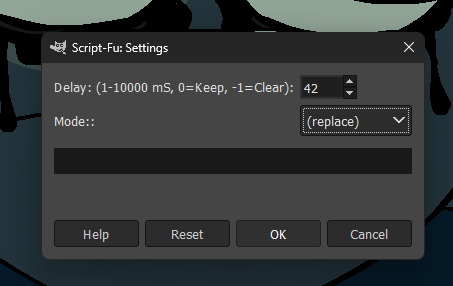
oh, and I found a really helpful script for handling changing the delay and disposition of layers for animations in GIMP, it’s called sg-anim-settings by saulgoode, really helpful, cause dang, I don’t wanna manually do that for each layer!!! so yeah, I set it to replace on each frame (important since my PNG frames are transparent), and the milliseconds of delay of each frame to be ~42 (to equal 24-ish frames per second, the original frame rate).
once I’ve done all that, I can export the image as an animated WEBP or GIF. if I choose animated WEBP, there’s no need to worry about things like optimisation or dithering, the export process handles that on its own. they’re definitely a lot better than gifs too, capable of more intricate frame delay, less restrictive colour, more optimised, all of that.
for GIF, it works about the same in GIMP actually, but it can be necessary to hit the optimise option in GIMP just so the GIF doesn’t end up enormous. also, to allow for simulating additional colours, it’s best to have as large a resolution as you can for dithering to work best. always remember that GIF fucking sucks though, and it’s best to move onto another format, or just have video instead, like most modern things do.
yeah that’s about it 👍